Email Preview Across Email Clients Free: What You Need to Know Before You Send
You spend hours crafting the perfect email campaign. The copy is tight, the design looks sharp, and the call-to-action is sitting exactly where it should be. Then the sends go out, and a chunk of your audience sees a broken layout, missing images, or garbled fonts. This happens more often than most marketing teams want to admit, and it costs real money.
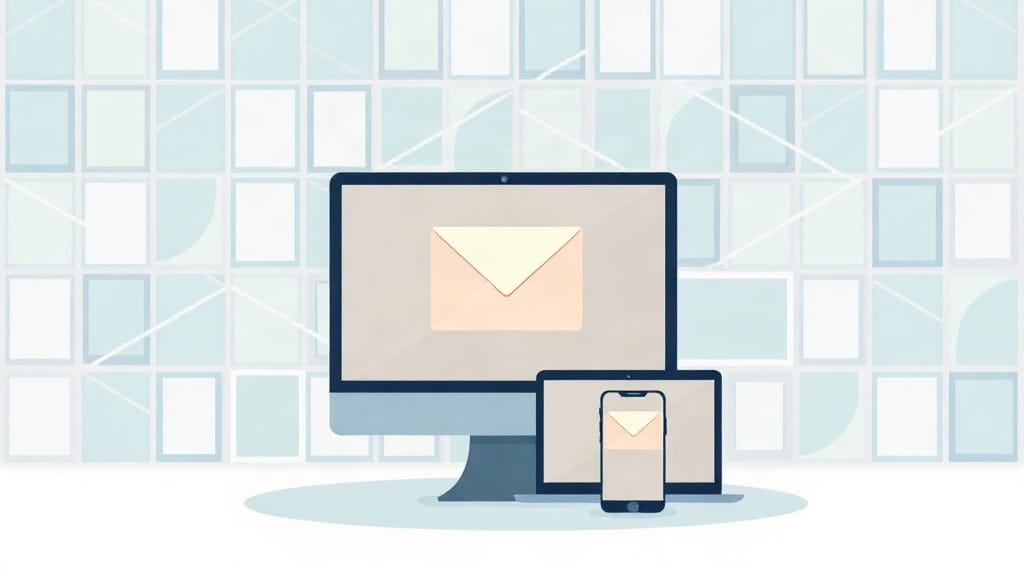
Different email clients render HTML and CSS in very different ways. What looks clean in one inbox can look like a poorly assembled document in another. Checking your email preview across email clients before hitting send is not optional if campaign performance matters to you. The good news: there are free and low-cost ways to do this properly.
Why email clients render emails differently
Email clients are not browsers. They do not follow a single agreed-upon standard for displaying HTML, which has created a fragmented display environment that has frustrated email marketers for over two decades. Gmail strips certain CSS properties. Outlook on Windows uses Microsoft Word's rendering engine, a design philosophy carried over from the early 2000s. Apple Mail is generally more forgiving, but mobile versions introduce their own quirks.
According to data from the Data & Marketing Association, email generates an average ROI of £42 for every £1 spent. That number only holds when your emails actually display correctly. A campaign sent to 50,000 subscribers where 15% see a broken layout is a waste of budget and brand credibility, plain and simple.
The major email clients marketers need to account for include:
- Gmail (web and mobile) - clips emails longer than 102KB and has inconsistent CSS support
- Apple Mail on iOS and macOS - generally handles modern CSS well, but auto-scaling on mobile can shift layouts unexpectedly
- Outlook 2016, 2019, and 2021 on Windows - uses Word's rendering engine, so many modern CSS techniques simply do not work
- Outlook on Mac - renders differently than its Windows counterpart, which catches a surprising number of teams off guard
- Yahoo Mail and AOL Mail - share a rendering engine but have their own issues with background images and custom fonts
- Samsung Email, the default client on Android devices from one of the world's largest smartphone manufacturers
Testing against all of these is not a luxury. It is basic quality assurance for anyone running professional email marketing campaigns.
Free methods for testing email previews
Marketers working with limited budgets have several genuinely useful options at no cost. Each has specific strengths and limitations worth understanding before deciding which fits your workflow.
Send test emails to real accounts
The most straightforward approach is also the most reliable: send test emails to real accounts on multiple platforms. Set up free accounts with Gmail, Yahoo Mail, and Outlook.com. If your team has access to Apple devices, test on Apple Mail. Send your draft to each account and open it on the relevant client and device.
This method is free. It is also time-consuming and limited in scope. You can realistically test five or six clients this way, but covering thirty or more environments requires a dedicated tool. For small businesses or teams with limited sending volume, though, real-account testing catches the most glaring issues without spending a penny.
Use your email service provider's built-in preview
Most reputable email service providers (ESPs) include some form of inbox preview. Mailchimp, Klaviyo, Constant Contact, and others offer preview modes that simulate how your email will appear on desktop versus mobile. These are useful for catching obvious layout problems but do not replicate actual rendering in specific clients like Outlook 2019 on Windows.
Think of ESP previews as a first-pass check, not a final quality gate. They are good at showing whether your email collapses properly on mobile, whether images are loading, and whether your text hierarchy looks right. They are not a substitute for client-specific rendering tests.
Browser-based email clients
Opening your email in Gmail, Yahoo Mail, or Outlook.com through a web browser gives you an accurate picture of how those web-based clients render your message. This costs nothing beyond the time it takes. Combining this with responsive design mode in Chrome's developer tools lets you simulate mobile screen sizes, though the actual mobile app rendering may still differ.
Free tiers of email preview platforms
Dedicated email preview platforms exist specifically to solve the multi-client rendering problem. Many offer free tiers that allow a limited number of previews per month - enough for smaller teams to cover their most-used sending environments. Email Preview Services (EPS) is one such platform, offering tools that let marketers check how their campaigns appear across dozens of email clients and devices without a major software investment.
These platforms work by rendering your email in actual client environments, not simulated ones. That distinction matters. A simulated preview approximates what a client might show; an actual render shows exactly what the client shows.
What to look for when reviewing email previews
Running a preview test without knowing what to look for is like proofreading without reading. Before approving any email for sending, work through each preview with a clear checklist in mind.
Layout and spacing
Check whether multi-column layouts collapse correctly on mobile. A two-column section that looks elegant on desktop should stack vertically on a 375px-wide phone screen. If columns sit side by side at a width that forces horizontal scrolling, mobile readers will bail immediately.
Also check padding and margins. Outlook is notorious for ignoring padding set in certain ways, which can cause text to press awkwardly against container edges or images.
Image rendering
Some corporate email environments block images by default. Your email should still communicate its core message even when images do not load. Every image needs descriptive alt text, and your layout should not collapse or become unreadable when images are absent.
Check that background images degrade gracefully. If you are using a hero image as a background with overlaid text, test what happens when that background does not load. In many Outlook versions, background images are not supported at all.
Font rendering
Custom web fonts do not load in every email client. Gmail on Android, for instance, does not support web fonts. Your email should specify reliable fallback fonts so the typography stays readable even when the preferred font is unavailable. Check your preview renders to confirm the fallback looks intentional rather than broken.
Link and button functionality
Buttons are often built with CSS, and CSS button support varies widely across clients. In clients that do not support background colors on anchor tags, your call-to-action button may render as plain underlined text. Using bulletproof button techniques (which rely on table-based HTML structures) helps ensure buttons display consistently.
Dark mode compatibility
Dark mode adoption has grown considerably. Apple Mail, Outlook for iOS, and Gmail on Android all support dark mode, but each handles it differently. Apple Mail inverts colors automatically, which can make custom-designed dark mode emails look wrong. Outlook applies its own overlay. Gmail on Android uses a different algorithm. Testing dark mode rendering is no longer optional for campaigns targeting professional audiences.
Building a sustainable email QA process
Ad hoc testing before individual sends is better than nothing, but a repeatable quality assurance process delivers more consistent results over time. A structured approach also makes onboarding new team members easier and helps maintain standards during busy campaign periods.
Create a standard client test matrix
Identify the email clients your audience actually uses. Most ESPs provide device and client data in their reporting dashboards. If 40% of your audience opens on Apple Mail for iOS and 30% on Gmail, those two environments deserve the most scrutiny. Build a test matrix covering your top five to eight clients and treat it as your minimum test set for every campaign.
Expand the matrix for major campaigns, particularly those with complex layouts or design elements being used for the first time.
Test templates once, send often
If your campaigns use a consistent set of email templates, run thorough cross-client testing when you first build or update a template. Document what renders correctly and what required workarounds. This upfront investment means future campaigns built on tested templates need only be checked for content-specific issues rather than structural ones.
Keep a rendering issue log
When preview tests reveal a rendering problem, write it down. Note the client, the issue, and the fix applied. Over time, this log becomes a reference guide that saves hours of troubleshooting. Patterns emerge, and teams develop a sharper instinct for what kinds of code cause which clients to misbehave.
The cost of skipping email preview testing
Marketers sometimes treat cross-client testing as a step to cut when deadlines are tight. The tradeoff is rarely worth it. A broken email sent to a list of 10,000 people is not just an aesthetic problem. It signals unprofessionalism, reduces click-through rates, and in some cases prompts subscribers to unsubscribe or mark the message as spam.
Inbox placement is also affected over time. Email service providers and internet service providers monitor engagement signals. If a campaign generates an unusually high rate of quick deletes or spam reports because the email looked broken, it can damage your sender reputation and reduce deliverability on future sends.
The time investment for basic cross-client testing is modest. Sending test emails to five or six accounts takes about twenty minutes. Using a dedicated preview platform to check thirty clients at once takes even less. Against the cost of a damaged campaign or a degraded sender reputation, that investment is easy to justify.
Getting started with free email preview testing
For teams new to cross-client email preview testing, a practical starting point is combining real-account testing with the free tier of a dedicated preview platform. Use real accounts to verify your two or three most-used clients, and use the platform's free previews for broader coverage.
Email Preview Services offers tools built for exactly this purpose, including cross-client rendering tests and inbox placement checks that help ensure your email lands in the right folder rather than the spam queue. For small and medium businesses that cannot justify enterprise software costs, access to even a basic set of preview renders before each major send makes a measurable difference in campaign quality.
The email clients your subscribers use are not going to standardize their rendering behavior anytime soon. Outlook will keep using its legacy engine. Gmail will keep stripping certain CSS. Dark mode will keep behaving unpredictably. Testing is the only reliable way to know what your audience actually sees when they open your message - and doing it consistently is what separates email programs that perform from ones that frustrate both sender and recipient.
Start with the free tools available to you today. Build testing into your campaign workflow before the send deadline, not as an afterthought after the complaints roll in. Your subscribers will not tell you that your email looked broken. They will simply stop opening your messages.